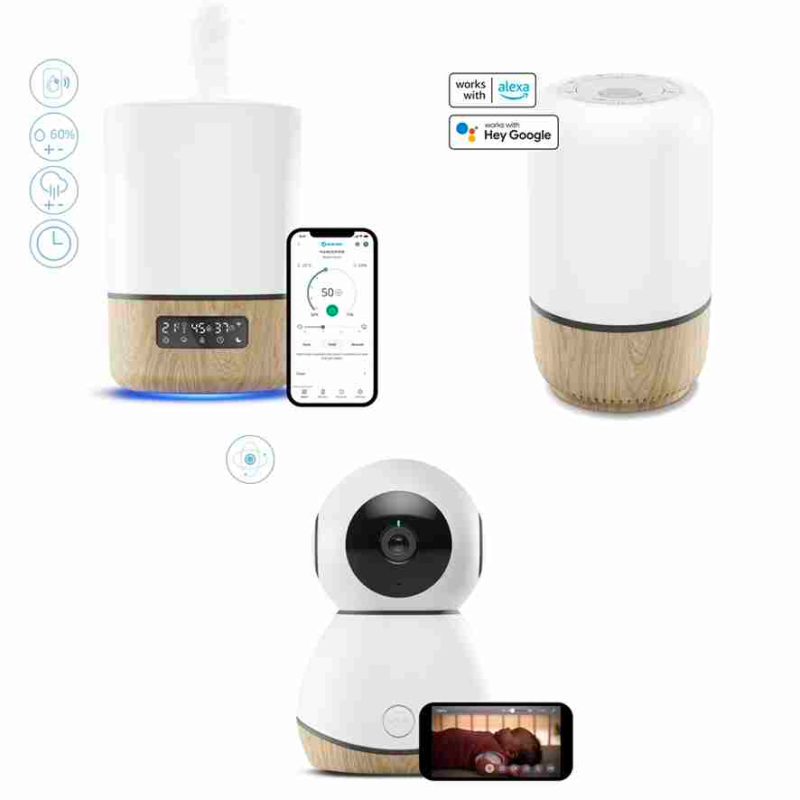
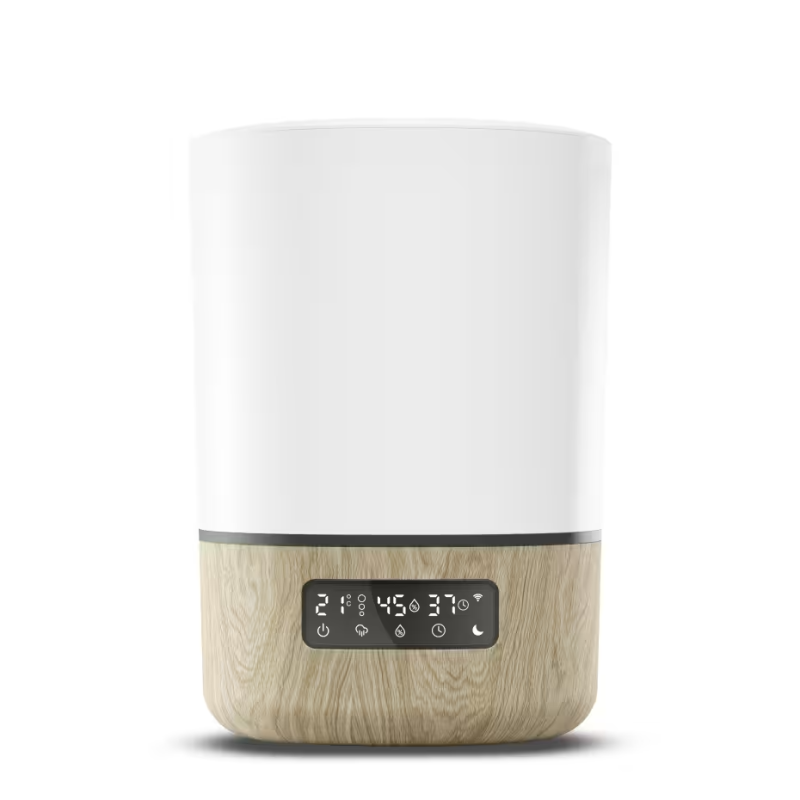
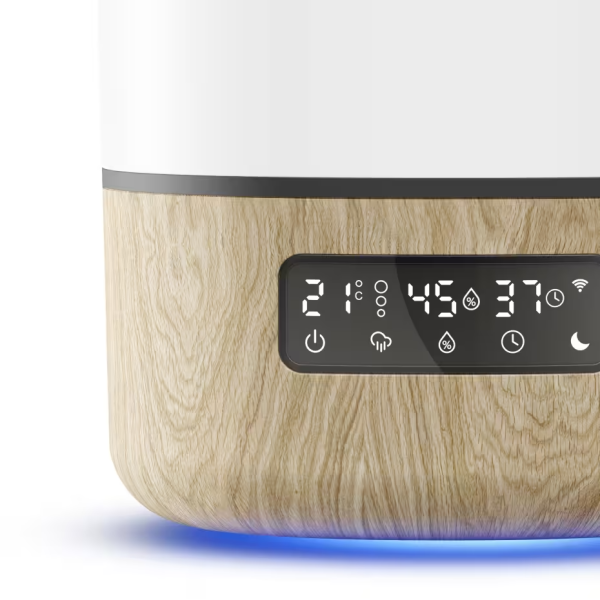
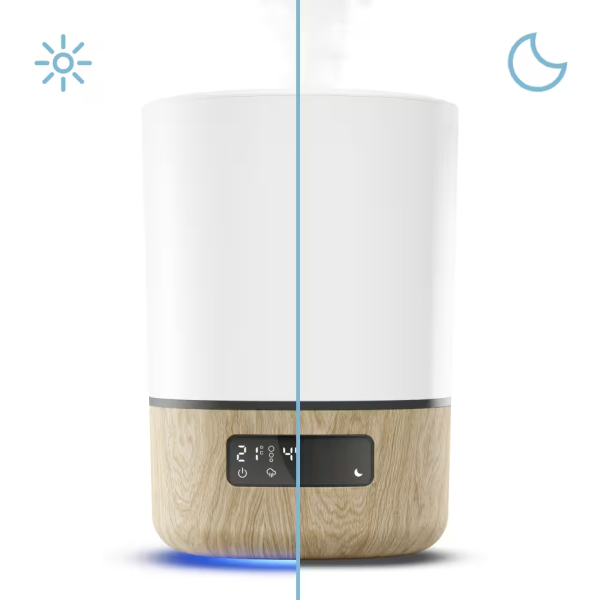
Product DescriptionBreathe Humidifier The Breathe Humidifier ensures your nursery is always at the perfect humidity for your baby to have a soothing sleep. You can switch it on from anywhere, via the Maxi-Cosi Connected Home app, to prep the nursery before bedtime. A range of smart sensors enable the Breathe Humidifier to operate fully in Auto Mode, or if you prefer you can adjust the humidity, mist levels and timers as you go. The Breathe Humidifier can also be used as an essential oil diffuser for a scented, soothing snooze.Read more See Baby Monitor With See Baby Monitor connected to your phone, you’ll have peace of mind that your baby’s always safe & sleeping comfortably. Keep a close eye on your little one at any time, with day & night vision and never miss a moment or a smile with HD live streaming, remote-controlled pan, tilt & zoom. Safe & secure, streaming data is fully encrypted so your family moments remain private. You can relax knowing you’ll be notified of any movement, sound, temperature or humidity changes via the app. Soothe Light & Sound The Soothe Light & Sound creates the perfect sensory experience for a calm, relaxed nursery. Personalise your baby’s sleep routines with soothing lights, sounds and sleep-inducing lullabies. As your child grows from a newborn to toddler, you can help teach them with personalised ‘time-to-rise’ settings. Via the app, you can control, programme and adjust music, light and colour brightness and create your own sensorial nursery scenes.ReviewsSpecificationsFeaturesFAQsDownloadsWhat's in the box Breathe Humidifier See Baby Monitor Soothe Light & Sound Breathe Humidifier Auto Mode which will define the best humidity level based on room temperature Works with Amazon Alexa & Google Home Timer for delayed start The large tank capacity of 3.8L allows the humidifier to run for 24h full mist ! Setup interactions between the different Maxi-Cosi Connected Home products Night Mode for perfect sleep & snooze Integrated Essential oil diffuser Safe & Secure: fully encrypted data Child lock mechanism for on-product display Humidity level adjusted manually or in Auto Mode Temperature displayed All setting can be adjusted manually from touch panel on product Intensity of mist can be set up manually or in Auto Mode A 2.4Ghz Wi-Fi internet connection is required for set-up of this product in the Maxi-Cosi Connected Home app. See Baby Monitor Optional sound & movement notifications Monitor’s head rotation left to right & up to down Works with Amazon Alexa & Google Home Zoom in & zoom out function Day & night vision for the best quality at all times Live 1080p HD streaming for the best vision Advanced and personalised routines in the Maxi-Cosi Connected Home app 2way-talk allows your little one to be comforted by your voice Safe & secure, streaming data is fully encrypted so your family moments remain private. Humidity level visible and optional notifications Room temperature visible and optional notifications Motion detection with adjustable sensitivity Sound detection with adjustable sensitivity Built-in white noises (2) & lullabies (5) Optional video recording & photos Optional Cloud storage in app (with subscribtion) Possibility to use a SD card (not included) Soothe Light & Sound Timer for delayed start Combine the preferred song & light colour to soothe your baby Set up interactions between the different Maxi-Cosi Connected Home products Endless light colour options Soothing sounds & lights for babies ‘Time-to-rise’ toddler sleep training 20 different pre-programmed lullabies & white noises Safe & Secure: fully encrypted data Child lock mechanism for on-product display Works with Amazon Alexa & Google Home A 2.4Ghz Wi-Fi internet connection is required for set-up of this product in the Maxi-Cosi Connected Home app FAQs Can I control the remote via my Smart Speaker?Yes. Open the Maxi-Cosi Connected home app and go to the settings page by enter the upper right corner button. You can view the third-party controls supported under "Third-Party Control". Click on the icon of the corresponding third-party control to view the operation manual. How do I share a device?To share a single device: 1. On the device control page, tap the icon in the upper right corner to access the device settings page. 2. Choose Share Devices—Add Devices, enter the phone numbers/e-mail of your family members and tap on complete. To share family devices: 1. Access the Connected home app and choose Me—Family Management. 2. Go to the family that needs to be set, click Add Members, add family members and friends who need to share devices to the family, so that all devices in the family can be shared. Single devices do not need to be re-shared in this operation. 3. The easiest way to share is to log in using a same account. What should I do when a timed task is not performed correctly?Please follow the next steps. 1. Ensure that your device is powered on and turned on. 2. Ensure that your device has strong and stable Wi-Fi signals and is in the online state in the Maxi-Cosi Connected home App. 3. After the device is scheduled, the device has not been shut down or reset, because shutting down or resetting the device will interrupt the timing process. 4. Ensure that the validity period of the scheduled task is correct. Tap Timing and check whether Repeat covers the required validity period (Monday to Sunday available) of the task. If the validity period is correct, delete the timed task and add a new one. that all devices in the family can be shared. Single devices do not need to be re-shared in this operation. 5. If it is a Wi-Fi device, the device may be disconnected from the network, so time-related functions are invalid. If it is a Bluetooth device, it cannot always be connected to the phone, so it must be equipped with a Bluetooth gateway to ensure that the time-related functions of the device remain normal. And if it's a Zigbee device, it must be connected to a Zigbee gateway in order to obtain time and keep time-related functions normal. 3. If the timing does not take effect at the time you set, it may be that the time zone of your device is inconsistent with the time zone of your location. If the problem is not improved, please restore the device to factory defaults through the Maxi-Cosi Connected home App and set the timer task again after adding the device again. Can I use the Breathe Humidifier without using Internet?If you can't use the Internet, you need two smartphones that can provide a network hotspot. One phone turns on the hotspot as the network provider and the other can connect. If it's disconnected from the network, the Breathe Humidifier may not work properly. Why is the icon on the Breath Humidifer gray?A gray icon indicates that the Breath Humidifier is offline and a white icon indicate that it is online. If the icon is gray, check if the network settings are correct. If the Breath Humidifier is always offline, you can re-pair it with the App. Why are the values on two temperature and humidity sensors different?Different temperature and humidity sensors may have a deviation in data accuracy. Generally, the temperature deviation is ± 1°C and the humidity deviation is ± 6%. Why is there no reset button on my switch?Usually the reset button of the switch device is the switch itself. You can make the device enter the standby state by long pressing the switch itself. After entering, the power light will enter the flashing state. Why does the Breath Humidifier indicator fails into flash mode?Please read the user manual or the instructions on the network connection page. If it's still fails to enter the network connection, check if your device is powered on and turned on and wheter the indicator is steady on. Is there a risk to use the Maxi-Cosi Connected Home product in my baby’s room because of the Wi-Fi waves?There is no contraindication using any of the Maxi-Cosi Connected Home products, separately or all at the same time, in baby’s room. All our products strictly respect the European standards to your safety and that of your baby. What kind of essential oils can I use for my baby’s room?Essential oils are not permitted for infants under 3 months. Also, not all of them are allowed for babies. Before using a new essential oil, make sure to check with a specialist whether it can be used with babies and how to use it. For babies older than 3 months, it is recommended a safe dilution ratio of 0.5 to 1 percent Even when diluted, essential oils can cause skin irritation and sun sensitivity. It’s recommended that a patch test (also sometimes called a "spot test”) be performed on the skin, with each new oil introduced. Essential oils should never be used by children or infants, and should be kept out of infants’ reach to avoid accidental ingestion. When trying out a new essential oil around your baby, test a small amount of each new oil in a vaporizer for an hour to insure that no irritation occurs. Here are a couple of example of safe oils to use: Chamomile Gentle essential oil that can be beneficial for babies who have trouble sleeping. It has natural soothing effects and is traditionally used to treat insomnia in babies and adults. Eucalpytus radiata Eucalpytus radiata is a natural expectorant that can help unclog respiratory congestion. This makes Eucalyptus a favorite during the cold winter months. How do I clean my Breathe Humidifier?You can clean the humidifier with water or citric acid if there is scale in it. The humidifer comes with a small cleaning brush that you can use to clean it. Finally, rinse the transducer with clean water. It is recommended to clean it every 3 days. How do I use essential oils with my Breathe Humidifer?On the side of your humidifier you can open the aroma tray, add a few drop of essential oil on the aroma sponge. Close back the drawer and turn on the humidifer. Does my Breather humidifier work with batteries?Breathe Humidifier should be plugged to the power supply to work. It can't work with batteries. Can the Breathe Humidifier be turned on if the water level is below the minimum level?You can't turn on the humifier if the water level is too low. You will receive a low water alert on your phone to notify you when the water level is too low. When not using the app, remember checking the water level before launching it. What is the recommended humidity level for a baby's room.Contact your baby's doctor to know what humdity level suits best your baby. Can I use the Breathe Humidifier without the Maxi-Cosi Connected app?You can use the Breathe Humidifier without the Maxi-Cosi Connected home app thanks to the touch screen on the humidifier unit. However, you will have access to less features. Can I use any type of water in my Maxi-Cosi Breathe Humidifier?You can used any kind of water in your Breathe Humidifier but it is recommended to use demineralised water for better and longer performance. Does the Breathe Humidifier run on cold or hot steam?The Breathe humidifier runs on cold steam. What is the maximum room range to use the Breathe Humidifier?The recommended room range is max 20m2 Is the Breathe Humidifier steam rate asjutable or static?The Breathe Humidifier offers 3 steam intensity. What does EF mean on my Breathe Humidifier?EF symbol is a protection mechanism that alerts if too much water is in the base. It can happen when you move the Breathe Humidifier with water in it. To resolve this issue; the tank and base must be emptied as follows. 1. Unplug the device from the electrical outlet 2. Carefully remove the tank from the base. 3. Empty all water from the tank and the base. 4. Ensuring everything is thorougly dry with a towel, plugin the base to power. 5. Replace the empty tank onto the humidifier. 6. Tap the Power button on the humidifier, the device should turn off within a few seconds. 7. You can now re-fill the humidifier tank. If EF symbol persist on your Breather Humidifier screen, you can directly contact Maxi-Cosi consumer care. How do I turn on/off the indicator light or backlight of the Maxi-Cosi Baby See Monitor?Open the Maxi-Cosi Connected Home App and you can go to 'settings' - 'Disable Status' and tap on the icon in the upper right corner and then tap Basic Function Settings—Disable Status Indicator/backlight. For more information about the features of the See Baby Monitor, please see our user manual. What can I do if my mobile phone can't receive pushed messages?Verify that your mobile phone allows the Maxi-Cosi Connected home App to push messages and you can go to 'settings', click on Me-Message Center and click on enable notifications by using the button in the upper right. Also, check 'Notifications Settings', whether Do-Not-Disturb Schedule was on. If your mobile phone and device allows the Maxi-Cosi Connected home App to push messages but do not receive any messages, check whether the app message center has new message notifications. How do I block notifications for a specific period?Open the Maxi-Cosi Connected Home App you can go to 'settings' - 'App Notification'. You also can go to 'Message Center and tap the gear icon in the upper right corner. On the Notifications Settings page that appears, tap 'Do-Not-Disturb Schedule'. If you are setting the schedule for the first time, you must first add a Maxi-Cosi Connected Home product for which you want to enable this feature. How do I unbind a Maxi-Cosi Connected home product with an app account?Tap on the Maxi-Cosi Connected home product in the device list to enter the control panel and tap on the button in the upper right corner to enter the editing page. Remove 'Device' to remove your Maxi-Cosi Connected home product from the list. All automation and tap-to-run scenes associated with the product will become invalid. Alternatively, you can set your device to the network pairing mode to remove the device. What should I do if the Maxi-Cosi Baby See Monitor goes offline?If the Maxi-Cosi Baby See Monitor goes offline you can check whether the router is powered off or disconnected from the network. If so, the router will take some time to recover and wait for two minutes. Check whether the router has been replaced, or the Wi-Fi name or password has been changed. If so, remove the Maxi-Cosi Baby See Monitor from the list and then add it to the network again. Check whether the firmware is the latest version. To check this on the app, choose Home—Tap device icon—Top right button—Check for Firmware Updates. If the Baby See Monitor goes offline after a period of use, but after restarting the router or re-networking the device, it will returns to normal. Indicating that the router is overloaded due to long-term high-load use, and you need to replace it with a more powerful one. If the Baby See Monitor still fails to connect to the network after the preceding steps, place the Baby See Monitor in a network environment with strong signals and connect it to the network again. Can the Maxi-Cosi See Baby Monitor automatically connect to the network when being powered on again after a power outage?If the Maxi-Cosi See Baby Monitor is offline after a power outage or network disconnection, the product can automatically reconnect to the network after the network is restored. If not, there may be too many devices in your home that need to be connected to the Internet, which exceeds the load range of the router (ordinary home routers can only load less than 10 devices), so your Maxi-Cosi Baby See Monitor can't connect back to the network. Or the quality of the network in your home is unstable, so the See Baby Monitor connect back to the network in time after the power is restored. Why can't I connect the Maxi-Cosi Baby See Monitor to my phone?If you have any problem with adding the Baby See Monitor to the Maxi-Cosi Connected home app, please check the following steps: - The Wi-Fi name is short and simple, and does not contain any Asian or special characters. - The scanning distance is set properly. - The lens of the camera is operating properly (the camera is not out of focus) and is able to scan the QR code. - The Wi-Fi account and password are entered correctly. - The camera is connected to a 2.4 GHz network. If the Baby See Monitor still fails to connect to the network after the preceding steps, please contact us for help with your app ID. Why doesn't the motion detection alarm works?Open the Maxi-Cosi Connected Home App and tapp on the Baby See Monitor. Tapp on the Motion Detection Settings and select the required detection sensitivity. Your mobile phone system automatically disables App's alarm push and alarm. How to turn on the camera motion detection function and adjust the sensitivity?Open the Maxi-Cosi Connected home App and click on the button motion detection setting and check the detection sensitivity. If the motion detection is often delayed and unable to capture moving objects, it means that the network in your home is poor or the connection delay with the cloud server is high. If it still doesn't take effect, it is recommended that you remove the Baby See Monitor and add it again to the app. The difference between high, medium and low alarm sensitivity is: High sensitive: the camera detects that there is an object is moving, as long as there is a slight shaking, it will alarm. Medium sensitive: the camera detects that a clearly visible object is moving, and it will alarm when the object has a large movement. Low sensitive: the camera detects that there is a clearly visible object moving, and it will alarm when the object moves significantly. What is the Maxi-Cosi See Baby Monitor's privacy mode?After the privacy mode of the camera is turned on, the camera will enter standby mode. In this state, all the functions of the camera will be suspended until you manually turn off the privacy mode. Can I bind a smart camera with two mobile phones?No. However, you can use the home or sharing feature to share a smart camera with others. How do I use the Cloud Storage for videos service?Open the Maxi-Cosi Connected home App and go to Choose Me—Featured to enter Featured page. Then tap Cloud Storage for Cameras and purchase this service. To purchase this service, you must add the Baby See Monitor to the App. After that, the device will encrypt your video data and upload it to the cloud server. You can view previously uploaded videos anytime. Note that you can't download videos that you have uploaded. How can I enable the camera to turn on/off the motion detection function at the time I need?Open the Maxi-Cosi Connected Home App and go to device setting page. Find the "Motion detection alarm settings" option (different device will display a slightly different option name). In the "Motion detection alarm settings" page, you can find the "alarm function schedule" option. You can turn on and off the camera's motion detection function. You can also turn on/off the camera's motion detection function at the time you need by adding an automated method. (If the camera device is not found in the automation, please click to view the troubleshooting process) Is there a risk to use the Maxi-Cosi Connected Home product in my baby’s room because of the Wi-Fi waves?There is no contraindication using any of the Maxi-Cosi Connected Home products, separately or all at the same time, in baby’s room. All our products strictly respect the European standards to your safety and that of your baby. Does See Baby Monitor work with batteries?See Baby Monitor doesn't work with batteries and needs to be plugges to the power supply. Can I use my See Baby Monitor without the app?You can't use your See Baby Monitor without the app. Can I check on my baby even away from home?As long as your See Baby Monitor is connected to your home Wi-Fi, you can check on your little one from anywhere to the condition you are connected to internet on your phone (different Wi-Fi network or phone data). Will I receive notifications on my phone if something happens in my baby's room?If you enable the notification, in the app settings and in the camera settings, you can receive notifications when the camera detects changes in your baby's room. You can also define the type of alert you would like to receive. Is there a limited number of See Baby Monitors which can be paired with the Maxi-Cosi Connected Home app?There is no limitation, but we recommend a maximum of 6 baby monitors paired at the same time to the Maxi-Cosi Connected Home app to prevent latency from WIFI router. How much digital zoom does the See Baby Monitor offers?The See Baby Monitor offers zoom x4 How much optical zoom does the See Baby Monitor offers?The See Baby Monitor offers zoom x4 What should I do when a timed task is not performed correctly?Please follow the next steps. 1. Ensure that the Sooth Light&Sound is powered on and turned on. 2. Ensure that your device has strong and stable Wi-Fi signals and is in the online state in the Maxi-Cosi Connected home App. 3. After the device is scheduled, the device has not been shut down or reset, because shutting down or resetting the device will interrupt the timing process. 4. Ensure that the validity period of the scheduled task is correct. Tap Timing and check whether Repeat covers the required validity period (Monday to Sunday available) of the task. If the validity period is correct, delete the timed task and add a new one. that all devices in the family can be shared. Single devices do not need to be re-shared in this operation. 5. If it is a Wi-Fi device, the device may be disconnected from the network, so time-related functions are invalid. If it is a Bluetooth device, it cannot always be connected to the phone, so it must be equipped with a Bluetooth gateway to ensure that the time-related functions of the device remain normal. And if it's a Zigbee device, it must be connected to a Zigbee gateway in order to obtain time and keep time-related functions normal. 3. If the timing does not take effect at the time you set, it may be that the time zone of your device is inconsistent with the time zone of your location. If the problem is not improved, please restore the device to factory defaults through the Maxi-Cosi Connected home App and set the timer task again after adding the device again. The color/brightness/color temperature control function is abnormal?Please first reset the device to factory settings. Uninstall the Maxi-Cosi Connected home App and then reinstall the App to your phone. Then add the device to the App again. How can I change the light color via Alexa?Please check whether your device can change the color via our Maxi-Cosi Connected home app. The light can change color with sound. After you have linked the light to alexa, the color can change with the music. How many lights can one remote control control?The control quantity of the Wi-Fi remote control is related to the load capacity of your router. The number of normal routers is 10 to 30. The quantity that can be controlled by the Bluetooth and remote control is 30. Can the 'scene' function in the lighting equipment control panel be controlled by voice command?The 'scene' function is currently not be controlled by voice command. Can I control the remote via my Smart Speaker?Yes. Open the Maxi-Cosi Connected home app and go to the settings page by enter the upper right corner button. You can view the third-party controls supported under "Third-Party Control". Click on the icon of the corresponding third-party control to view the operation manual. How do I share a device?To share a single device: 1. On the device control page, tap the icon in the upper right corner to access the device settings page. 2. Choose Share Devices—Add Devices, enter the phone numbers/e-mail of your family members and tap on complete. To share family devices: 1. Access the Connected home app and choose Me—Family Management. 2. Go to the family that needs to be set, click Add Members, add family members and friends who need to share devices to the family, so that all devices in the family can be shared. Single devices do not need to be re-shared in this operation. 3. The easiest way to share is to log in using a same account. Can the Soothe Light&Sound only be turn on and can't be turn off?You can try to reset the Maxi-Cosi Soothe Light & Sound and add it again. Then you can try again if you can turn off with Maxi-Cosi Connected Home app. If you still can't turn it off, please use the physical button and contact our consumer care service. Can I use the Sooth Light&Sound without the Internet?If you can't use the Internet, you need two smartphones that can provide a network hotspot. One phone turns on the hotspot as the network provider and the other can connect. If it's disconnected from the network, the Glow Crib light may not work properly. Is there a risk to use the Maxi-Cosi Connected Home product in my baby’s room because of the Wi-Fi waves?There is no contraindication using any of the Maxi-Cosi Connected Home products, separately or all at the same time, in baby’s room. All our products strictly respect the European standards to your safety and that of your baby. Can I use the Soothe Light & Sound without the Maxi-Cosi connected home app?You can use the Soothe Light & Sound without the Maxi-Cosi Connected home app. However, you will not have access to all the features. Does the Soothe Light & Sound work on battery?The Soothe Light&Sound doesn't on battery but must be plugged to the power supply. Manuals for Download Breathe Humidifier User Manual See Baby Monitor User Manual Soothe Light & Sound User Manual